How to Use MouseButtonControl
Learn how to customize your mouse buttons, assign multiple actions and get the most out of MouseButtonControl with this step-by-step guide.
In This Guide
01. Getting Started
03. Adding a Mouse Button
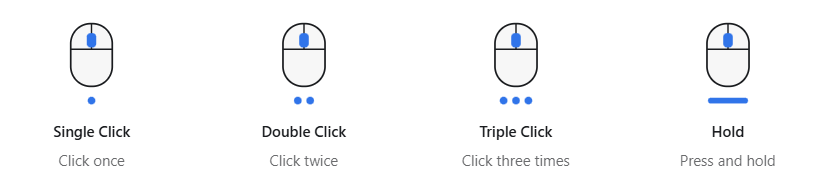
05. Click Patterns
07. Multiple Actions
09. Enable & Disable
11. System Tray
02. Main Interface
04. Detecting a Mouse Button
06. Assigning an Action
08. Managing Mappings
10. Application Settings
12. Important Information
1. Getting Started
When you open MouseButtonControl for the first time, you can start customizing your mouse immediately.
2. Understanding the Main Interface
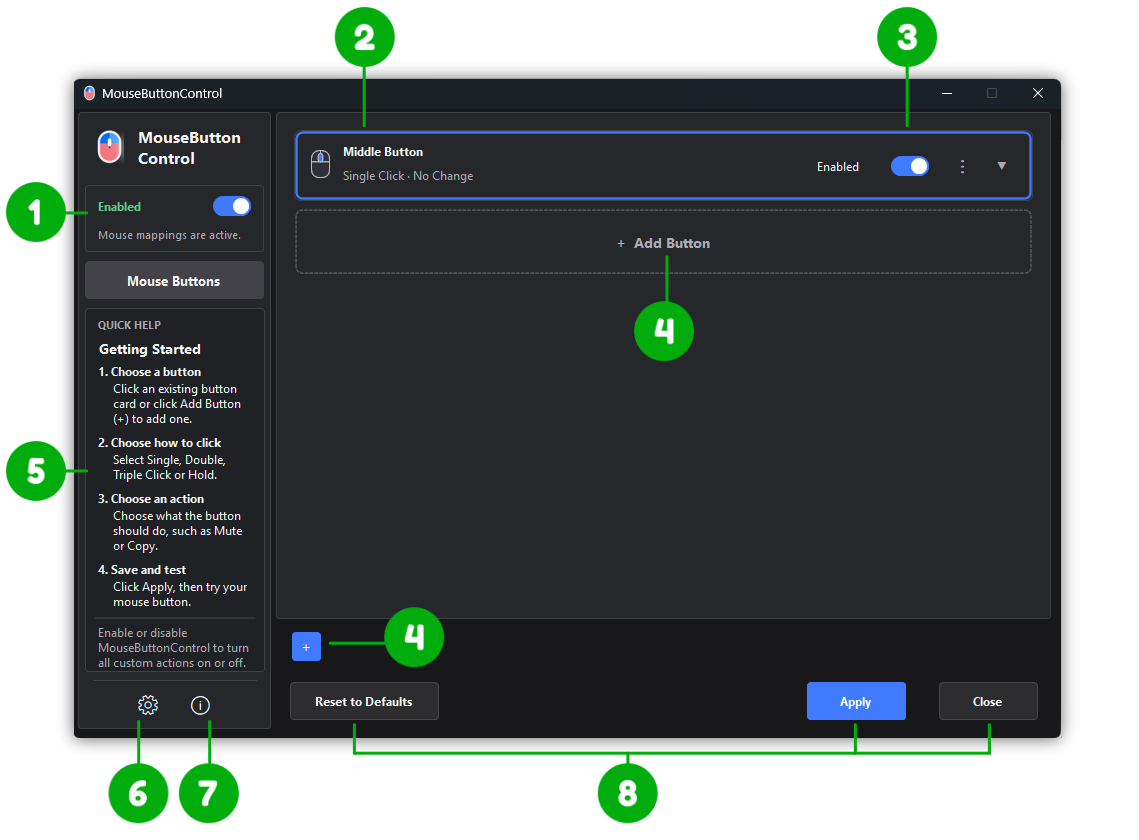
1. Global Enable/Disable
2. Mouse Button Mapping Cards
3. Individual Enable/Disable Switch
4. Add Button
5. Quick Help
6. Settings
7. About
8. Reset to Defaults, Apply, and Close
3. Adding a Mouse Button
MouseButtonControl makes it easy to customize your mouse buttons using its built-in input detection feature. You can add standard mouse buttons as well as compatible additional buttons that send keyboard shortcuts.
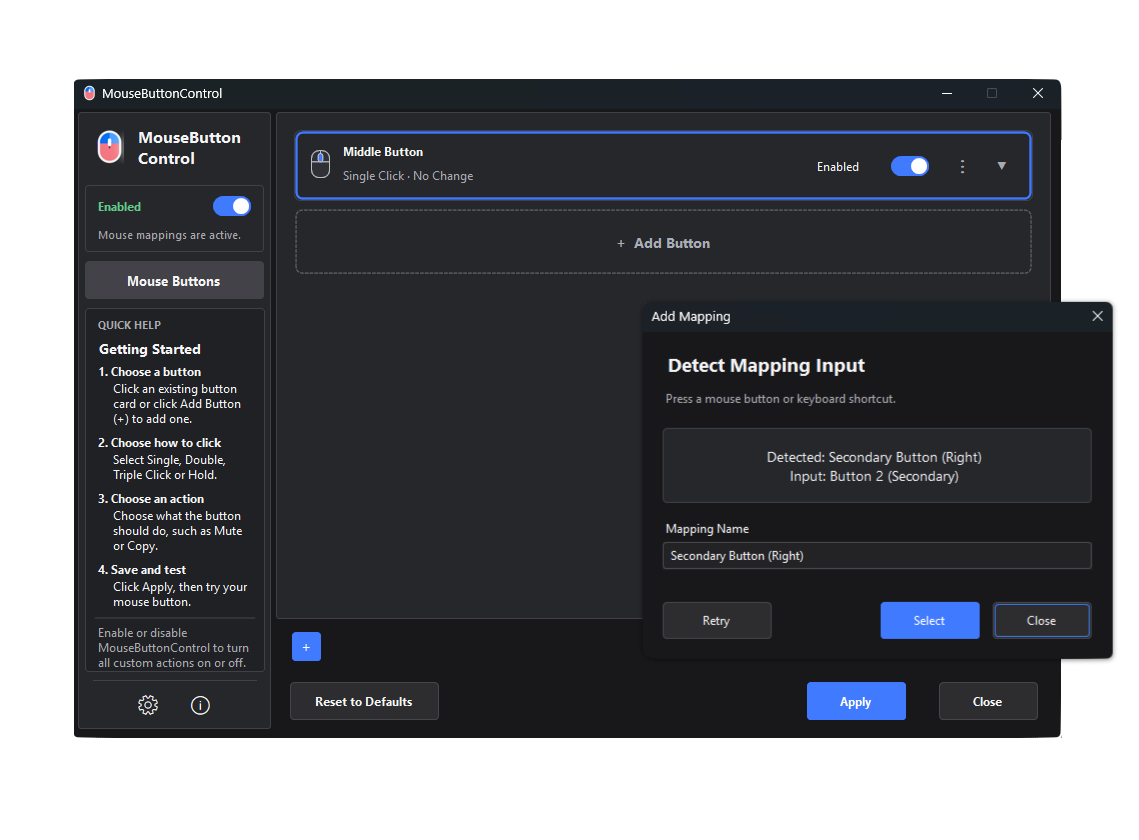
Step 1 — Select and Detect a Mouse Button
Click the + Add Button area or the small + button at the bottom of the mouse button list.
The Add Mapping dialog will open.
Press the mouse button you want to customize. MouseButtonControl will automatically detect the input and display the detected button information.
You can change the Mapping Name to make it easier to identify your mapping.
If the wrong input is detected, click Retry and press the desired button again.
Click Select to add the mapping.
Once selected, a new mapping card will be created and automatically expanded, ready for configuration.
4. Configuring Click Patterns and Actions
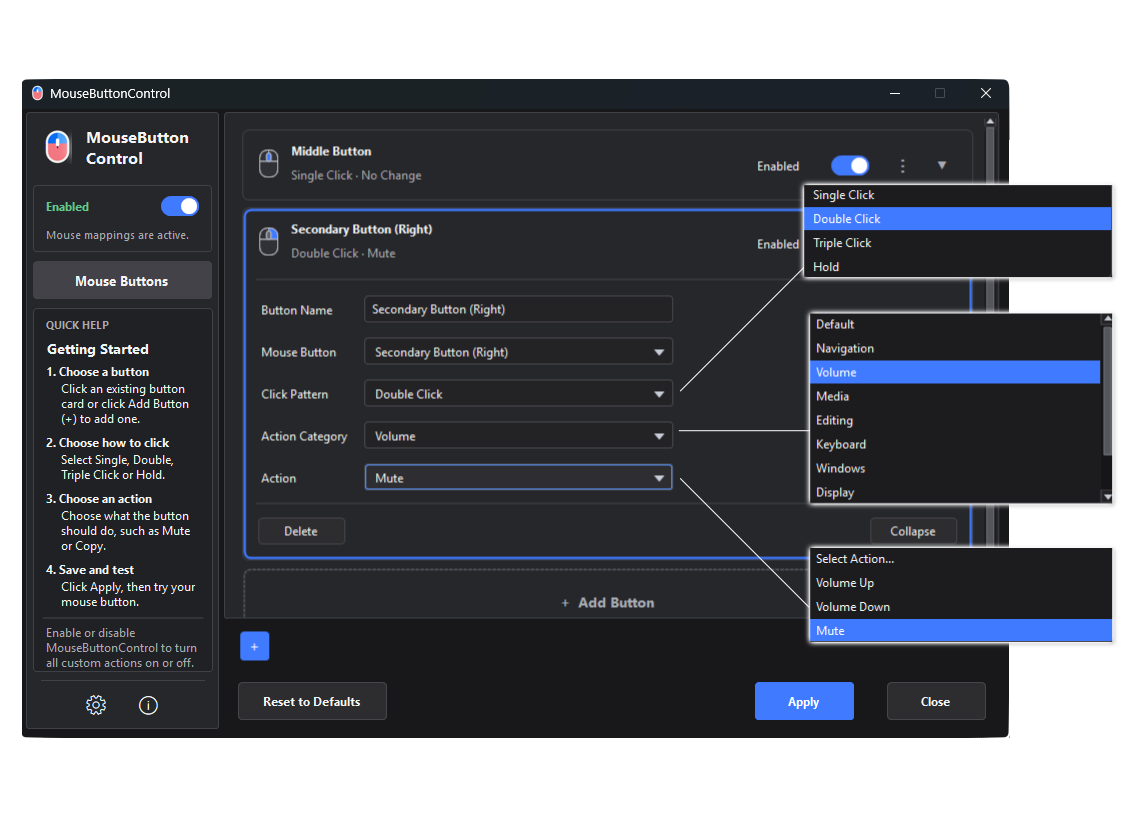
Step 2 — Configure Your Mouse Button
After adding a mouse button, its mapping card will automatically expand, allowing you to configure how the button should work.
Button Name
Enter a custom name to easily identify the mapping.
Mouse Button
Displays the mouse button or input associated with the mapping.
Click Pattern
Choose how you want to activate the assigned action. Depending on the supported input, you can select Single Click, Double Click, Triple Click, or Hold.
Action Category
Choose the category of the action you want to perform, such as Navigation, Volume, Media, Editing, Keyboard, Windows, or Display.
Action
Select the specific action you want the mouse button to perform.
Once you have configured your mapping, click Apply to save and activate your changes.
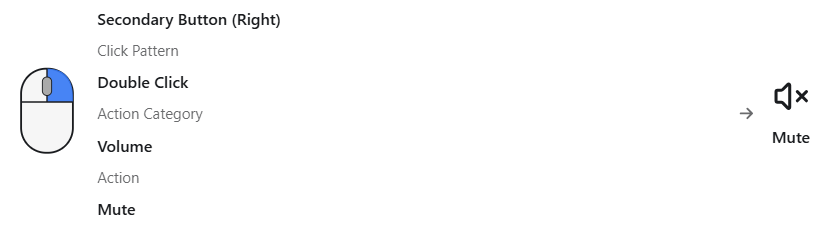
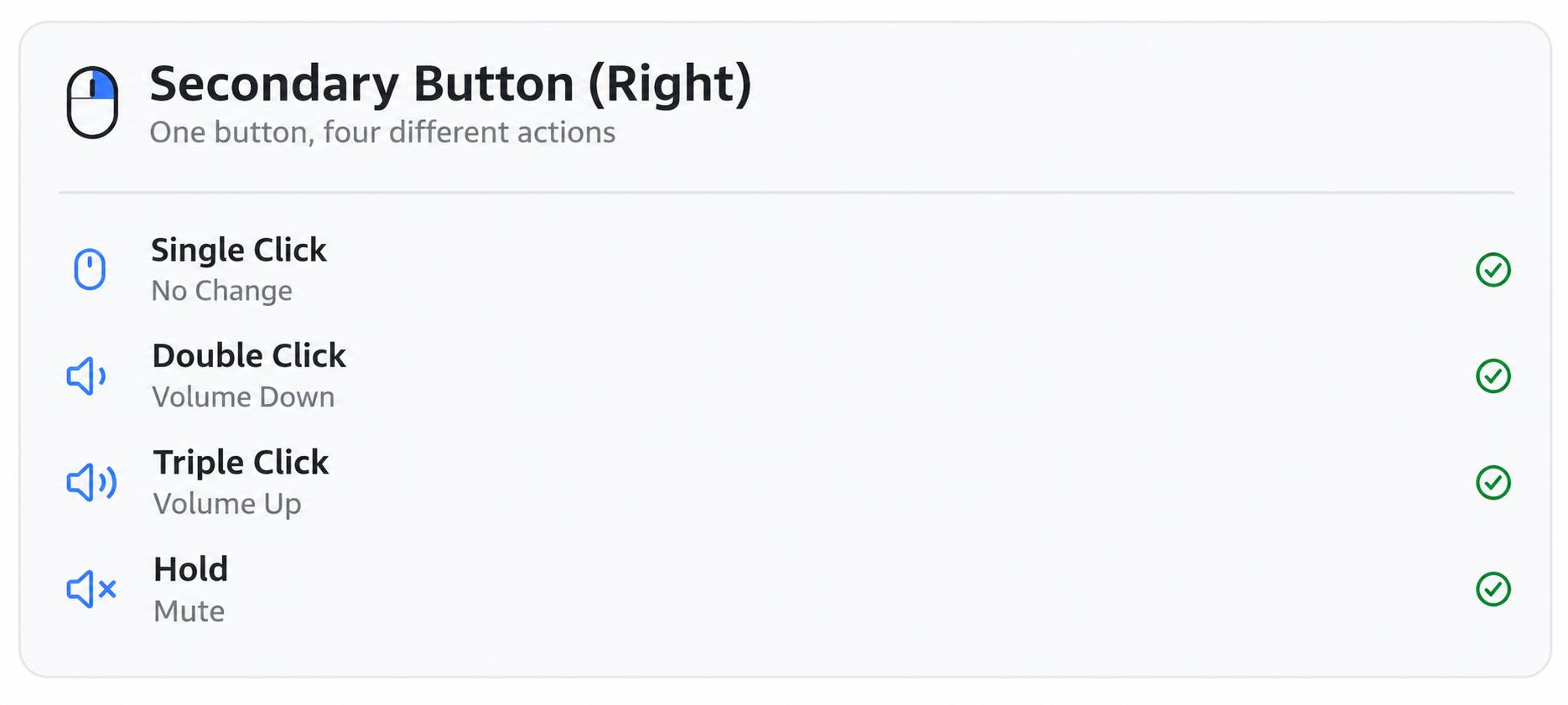
Example: Mute your audio with a double-click
Double-click your secondary mouse button to mute or unmute your audio.
5. Understanding Click Patterns
Customers Love MouseButtonControl
MouseButtonControl is made for Windows users who want their mouse to perform more tasks and make daily productivity better.